
How to Connect Your Google Business Profile to Google Ads (Step-by-Step Guide)
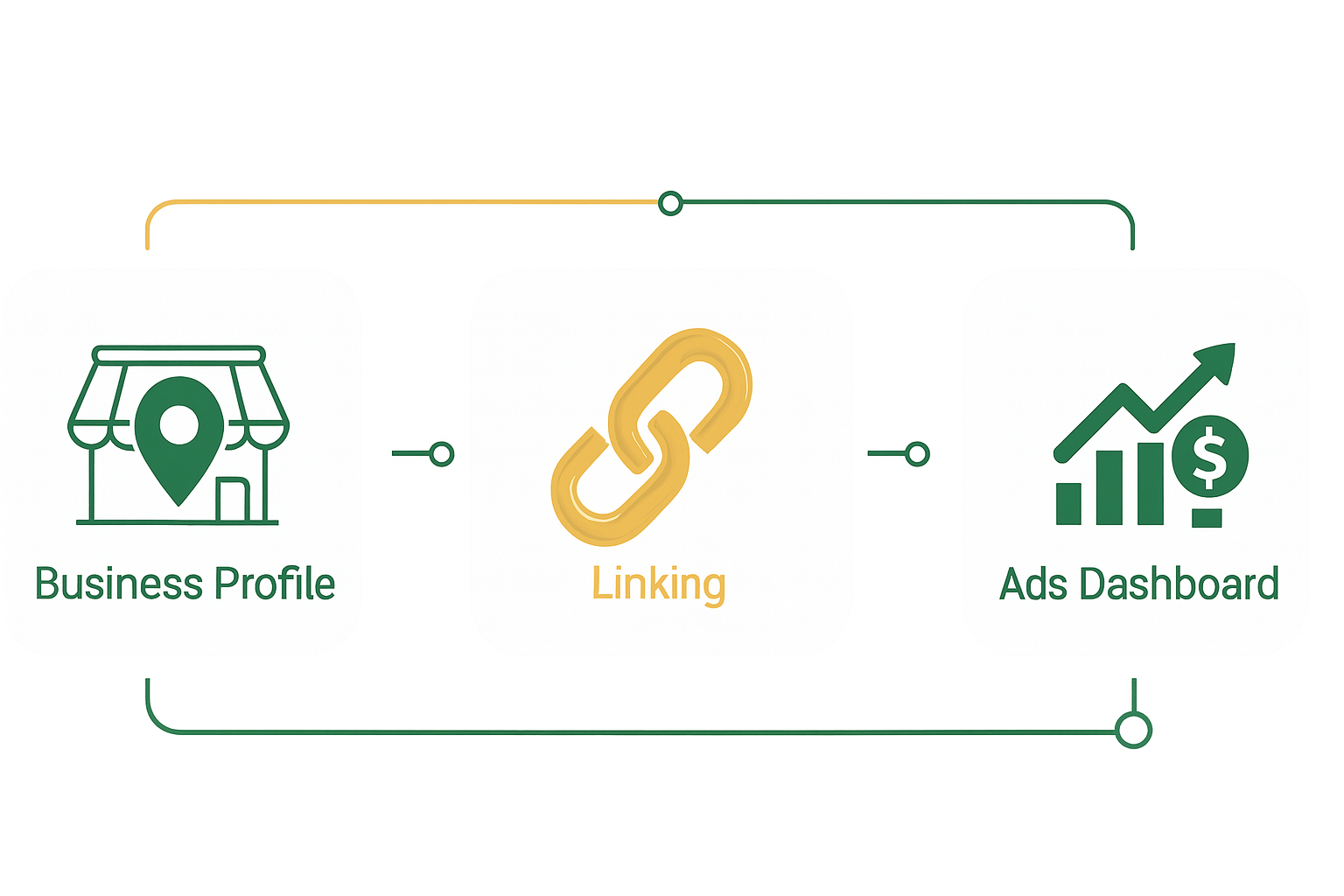
If you want your Google Ads campaigns to show location extensions, map pins, and local actions, you must link your Google Business Profile (GBP) to your Google Ads account.
Here’s a simple walkthrough to help you get everything connected correctly the first time.
Why Connect Google Business Profile to Google Ads?
Linking your GBP unlocks powerful local ad features, including:
- Location Extensions → Adds your address, phone number, and directions link to your ads
- Promoted Pins on Google Maps
- Store visit tracking (for eligible accounts)
- Local action conversions (calls, direction requests, website visits)
- Better local relevance, especially for service-area and brick-and-mortar businesses
If you skip this step, your ads miss out on major visibility — especially for “near me” searches.
Before You Start
You need:
- The Google account that owns or manages your Google Business Profile
- Admin access to your Google Ads account
Step 1: Log Into Google Ads and Open Data Manager
- Go to ads.google.com
- In the left-hand navigation, click Tools & Settings (the wrench icon)
- Under the Setup column, select Data Manager
Data Manager is Google’s new centralized area for all data connections — conversions, audiences, business data, and now your GBP link.
Step 2: Locate “Business Locations” or “Google Business Profile”
Inside Data Manager:
- Scroll to the section called Business Data
- Look for Business Locations or Google Business Profile (Google is rolling out new labels depending on the account)
You should see an option to Connect or Add your Business Profile.
Step 3: Choose Your Google Account and Confirm Access
Google Ads will prompt you to select the Google account that manages your GBP.
- Pick the correct Gmail account
- Grant permission for Google Ads to access your Business Profile data
- Confirm the connection
If you don’t see your business listed, it means your Google login does not have owner/manager access to the GBP.
Step 4: Select the Business Profile You Want to Connect
If your Google account manages multiple locations or businesses, you’ll see a list.
Select:
- Your primary business
- OR multiple locations if you run a chain or franchise
Click Continue or Save
Step 5: Enable Location Extensions
Once connected:
- Go to your campaign settings
- Find Ads & Assets
- Make sure Location Extensions are turned on
- Select the newly linked Business Profile as the source
Now Google can automatically show your address, reviews, hours, and map pin in your ads.
Common Issues (and How to Fix Them)
“My business isn’t showing up”
You’re logged into the wrong Gmail account. Switch to the one that manages the Business Profile.
“Google says I don’t have permission”
Your GBP role must be Owner or Manager, not “Site Manager” (which is too limited).
“Multiple locations aren’t syncing”
Locations must be:
- Verified
- Active (not suspended)
- Using the same country settings as your Google Ads account
“I connected it, but location extensions still aren’t appearing”
This can take a few hours.
Also check:
- You’re targeting the right geographic areas
- Location extensions are enabled at the campaign level
- The business info doesn’t violate ad policies
Final Thoughts
Connecting your Google Business Profile to Google Ads through Data Manager is one of the fastest ways to boost ad performance and visibility — especially for local and service-area businesses. Once you link the accounts, Google can automatically pull in your business info and show richer, more helpful ads.
If you want help optimizing the setup, auditing your account, or launching better-performing local campaigns, our team is happy to help.
![[background image] help desk (for a direct-to-consumer electronics brand)](https://cdn.prod.website-files.com/image-generation-assets/6aa39df4-5fc0-4593-8468-10b8495229d4.avif)