
How To Add Someone to Your Google Ads Account
If you're working with a marketing agency, freelancer, or team member on your Google Ads campaigns, you'll need to give them access to your account. The good news? You don’t need to hand over your login info. Google Ads has a built-in user access system that makes collaboration secure and easy.
Here’s a quick step-by-step guide to adding someone to your Google Ads account:
Step 1: Log in to Your Google Ads Account
Go to ads.google.com and sign in using the Google account that has admin access to your Ads account.
Step 2: Go to “Access and Security”
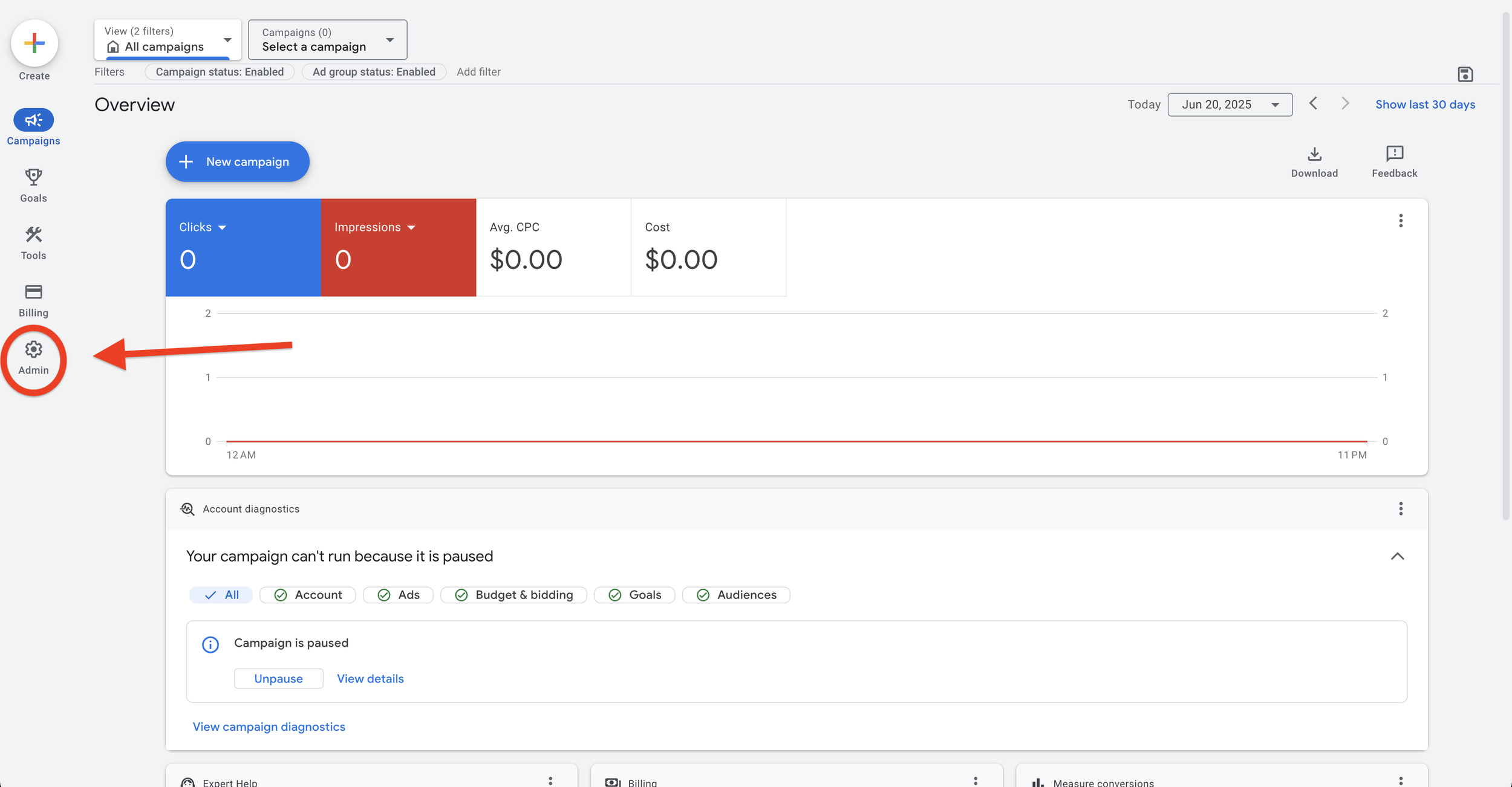
1. On the left hand side, click the admin icon (it looks like a gear).
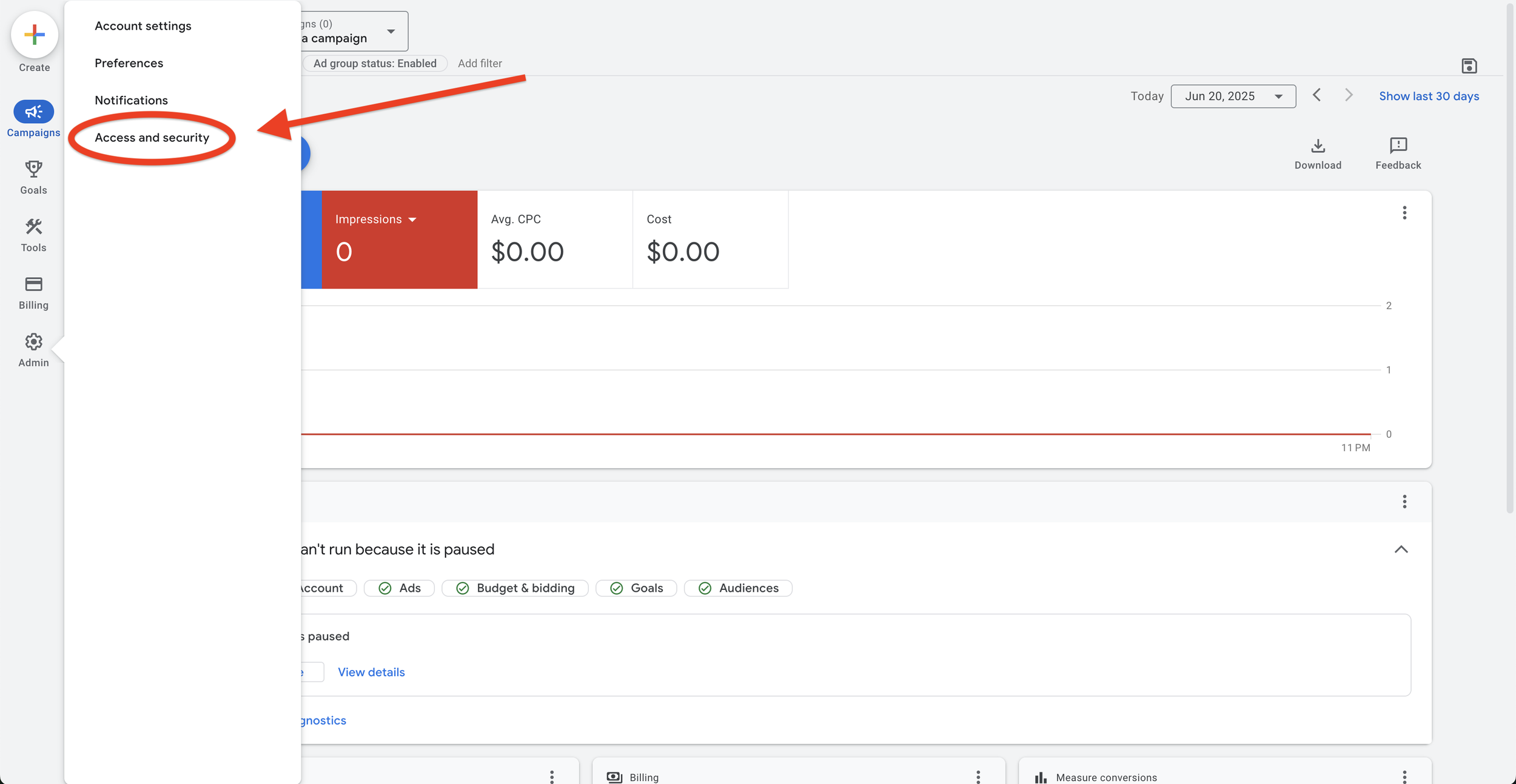
2. Then click “Access and security”.
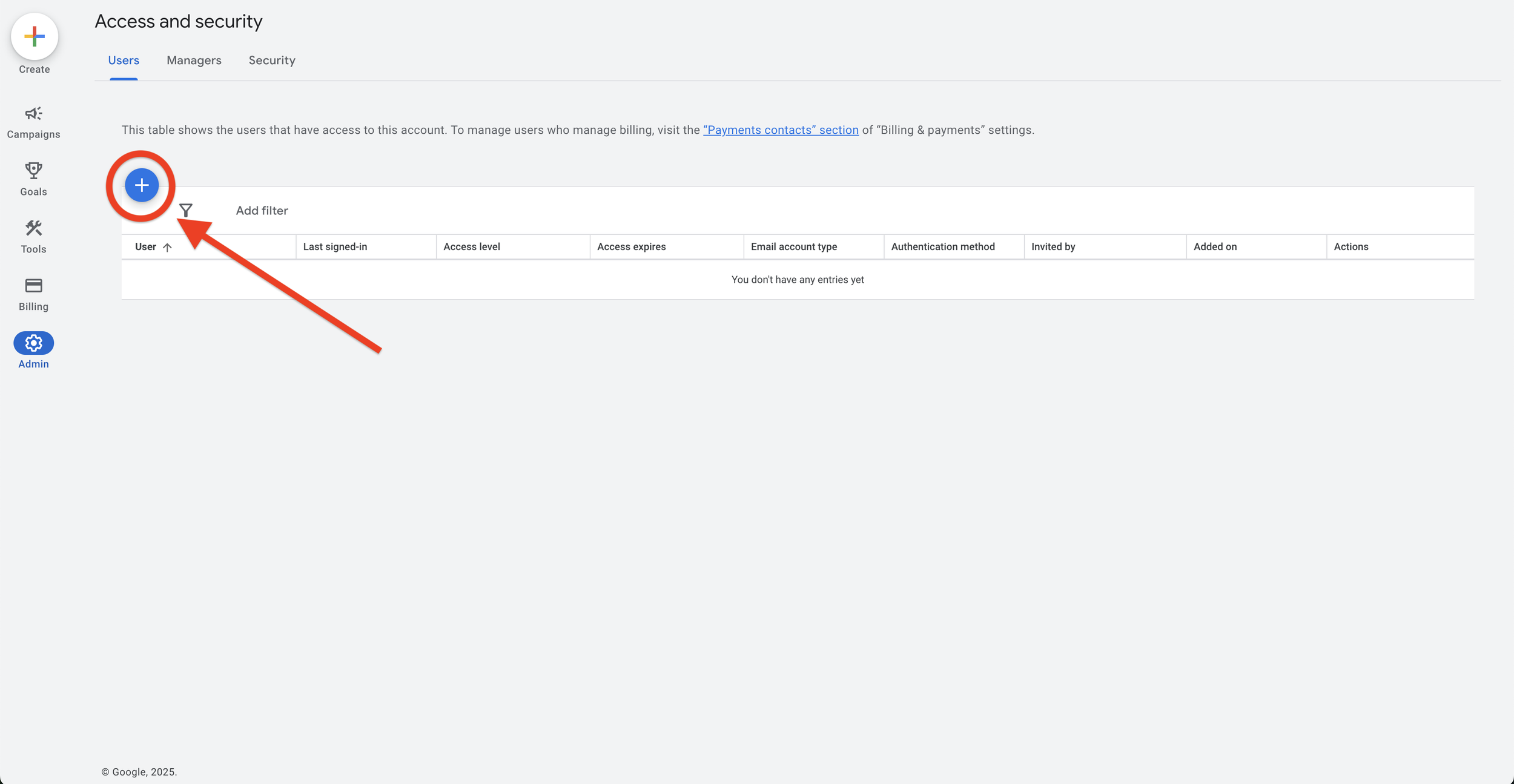
Step 3: Click the Blue “+” Button
In the "Users" tab, click the blue plus (+) button to add a new user.
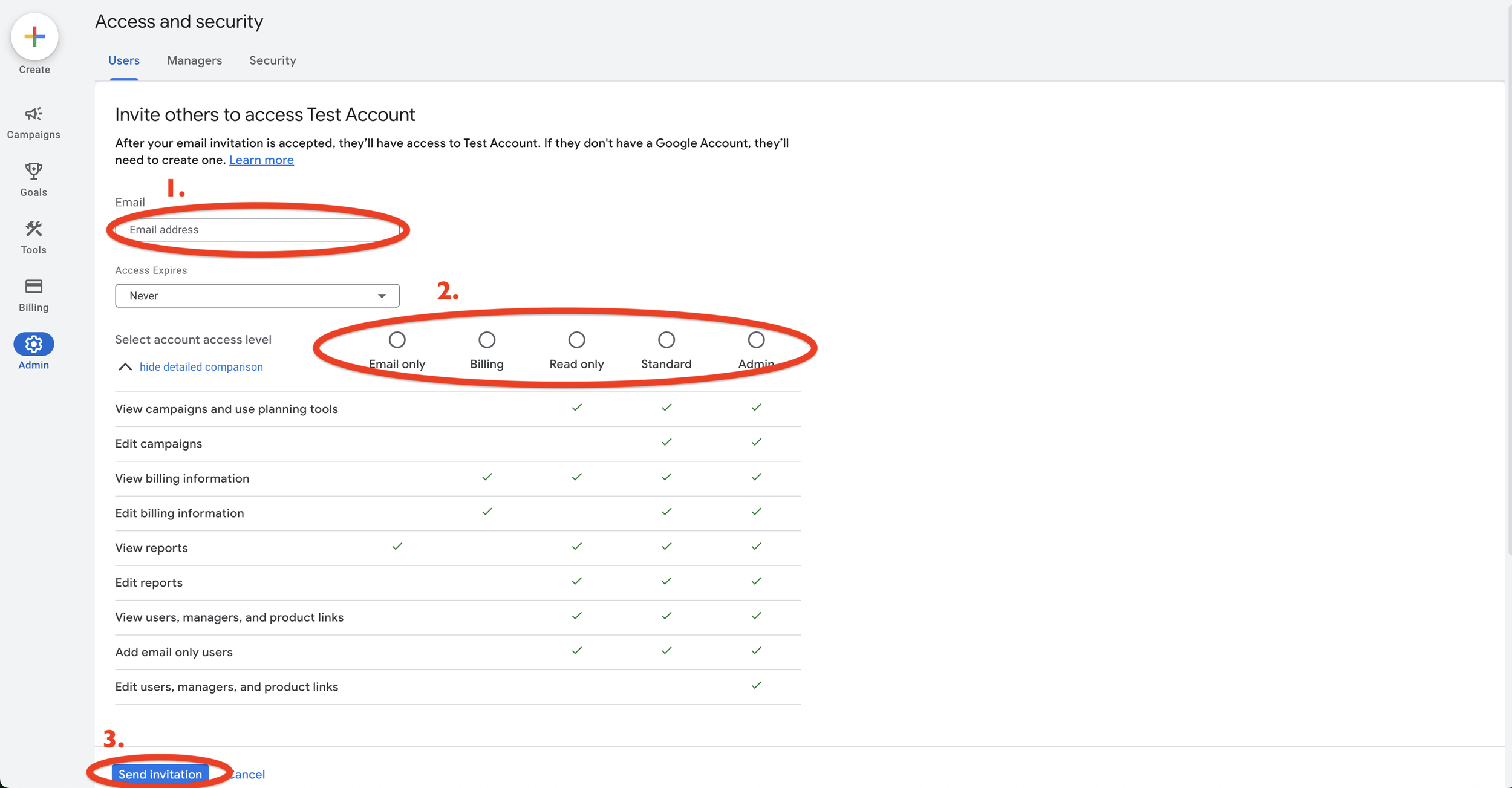
Step 4: Enter Their Email and Choose Access Level
1. Email Address: Type in the person’s email (must be a Google account — Gmail or Workspace).
2. Access Level: Choose one of the following:
- Admin – Full control, including user management.
- Standard – Can make changes but not manage users.
- Read-only – Can see everything but can’t make changes.
- Billing — Can view and edit billing information.
- Email-only – Only receives alerts and reports.
3. Click “Send Invitation.”
That’s It!
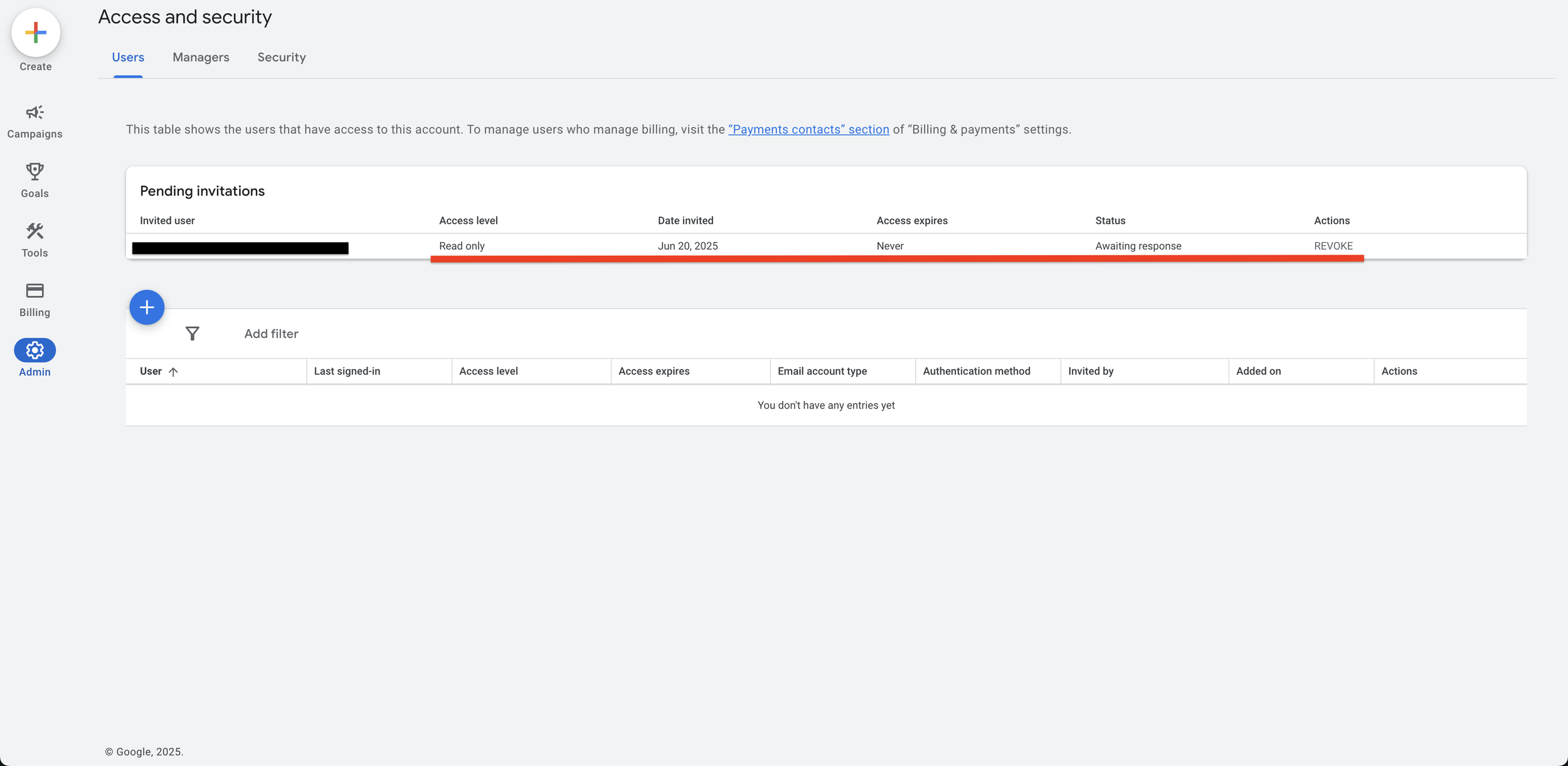
If the invite was sent successfully, the pending invite and info will be at the top on the page.
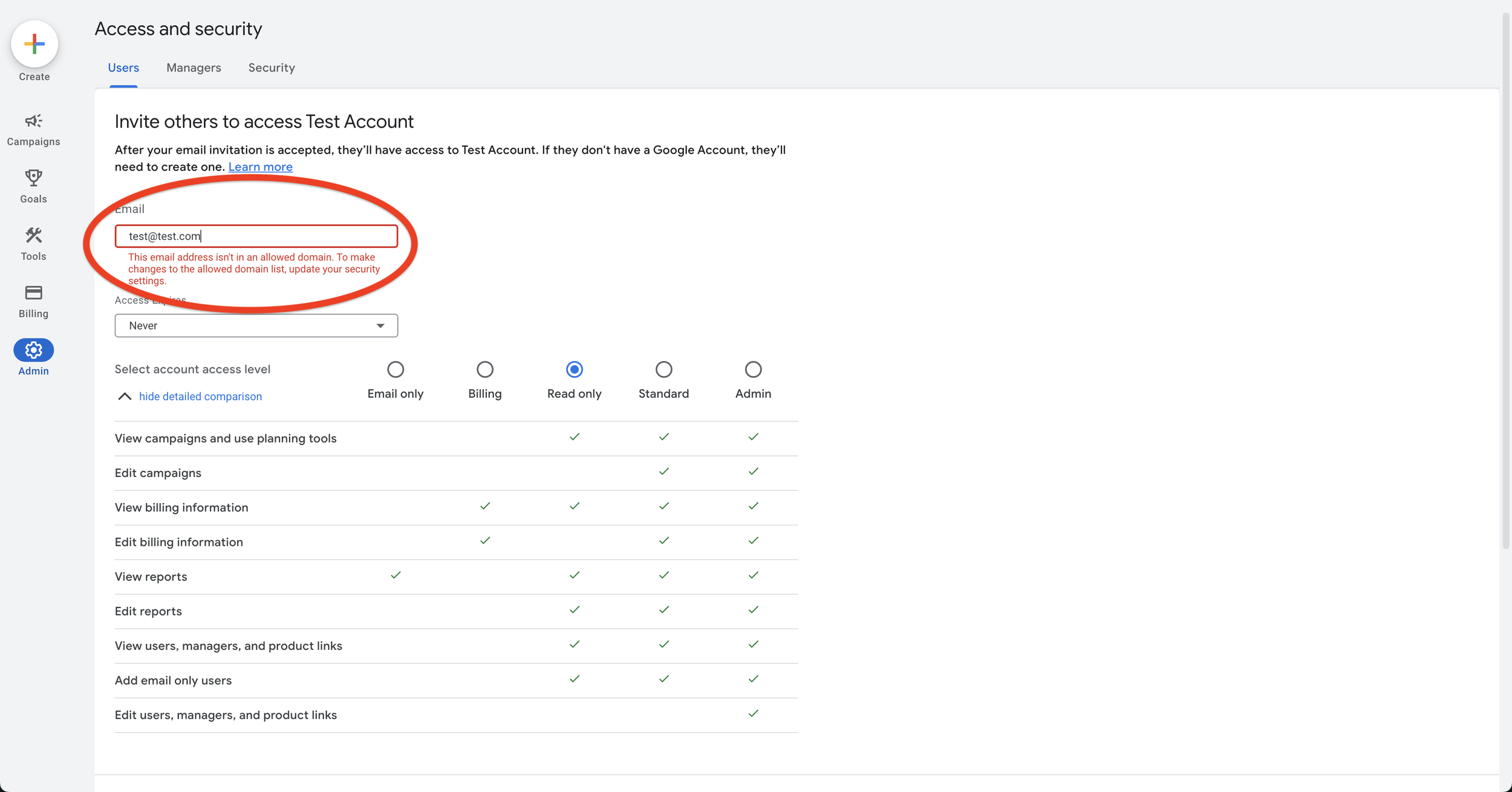
If it did not work, you may see an error that says “This email address isn't in an allowed domain. To make changes to the allowed domain list, update your security settings.”
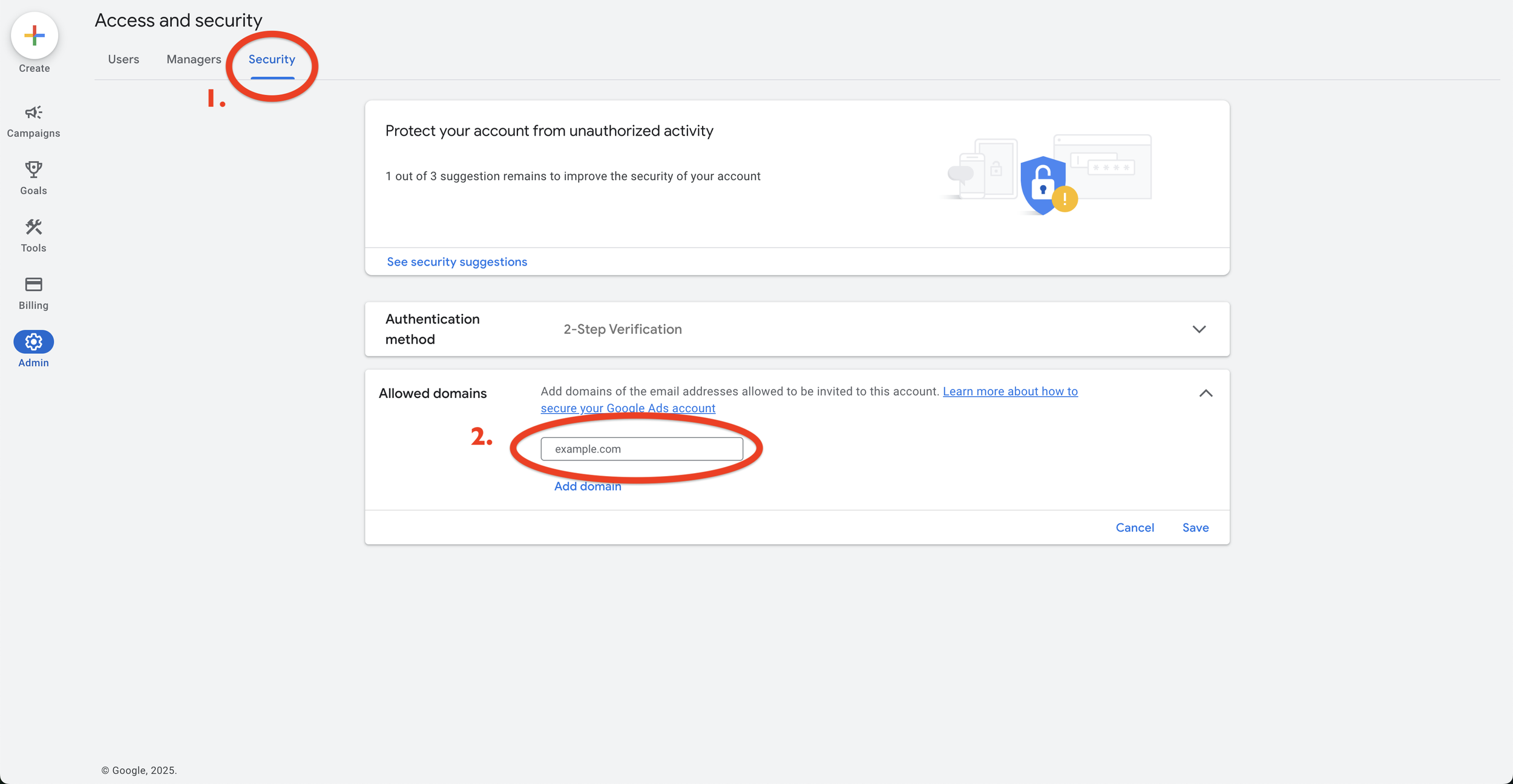
To fix this, first click on the “Security” tab at the top of the page. Next, enter the email domain of the user you would like to add and click save. (i.e. For the email example@examplecompany.com, you would add examplecompany.com as the domain.)
Once that is complete, repeat step 4 and you should be good to go.
If you run into any issues, let us know and we would be happy to help!
![[background image] help desk (for a direct-to-consumer electronics brand)](https://cdn.prod.website-files.com/image-generation-assets/6aa39df4-5fc0-4593-8468-10b8495229d4.avif)